How to get and add a Google Gemini API key
An API key lets House Plan Maker ask Google Gemini to draw your plan. The key stays in your browser and goes only to Google Gemini.
Before you start
- A phone or computer with internet.
- An account on Google AI Studio. You can create one on the page that opens.
Tips
- Set a spending limit in your Google AI Studio account if it offers one.
- On a shared computer, tap "Forget my key" when you finish.
Steps
- Step 1
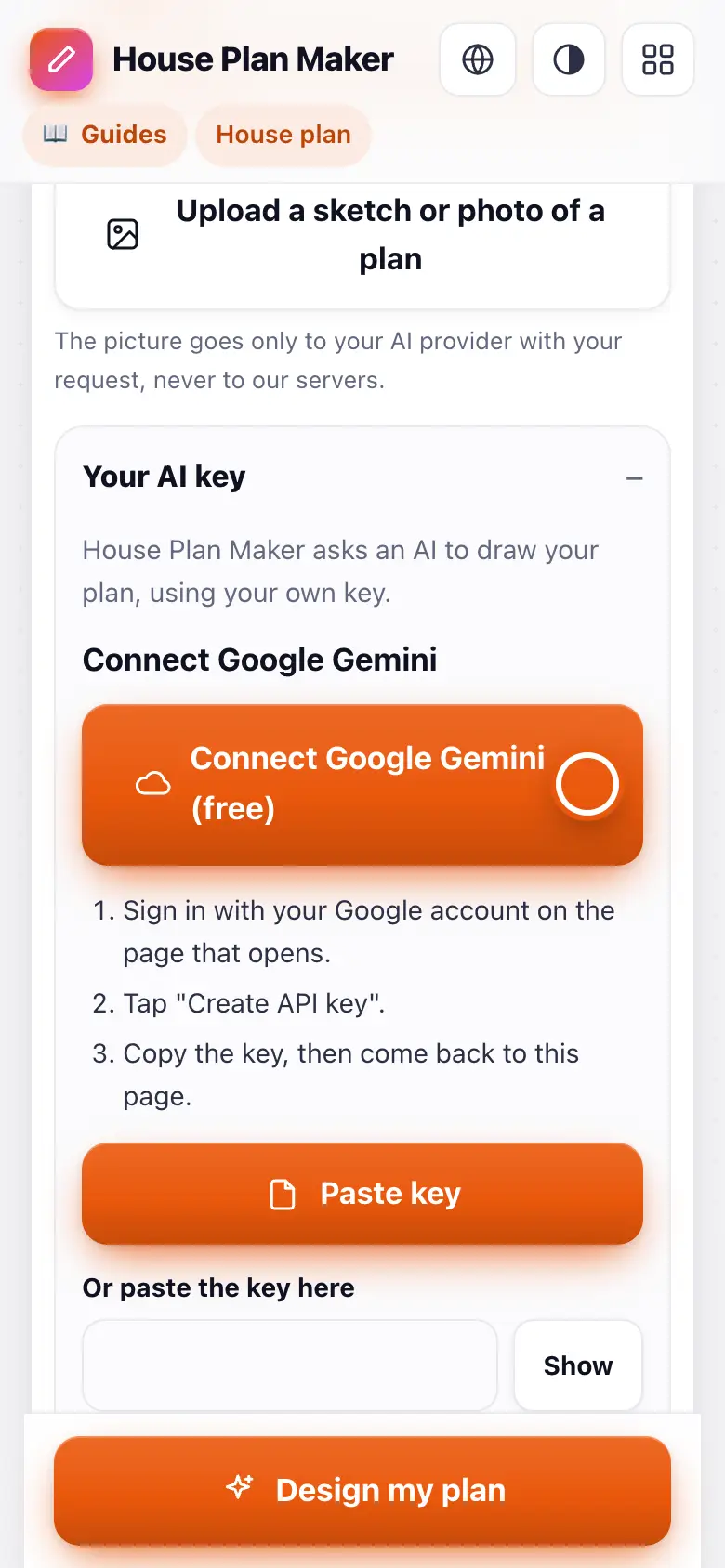
Open House Plan Maker and find Google Gemini under "Your AI key". Paid providers are under "Have a paid key? Use it instead". Tap "Connect Google Gemini (free)". The key page opens in a new tab.
- Step 2
Sign in with your Google account on the page that opens. Tap "Create API key".
- Step 3
Copy the key, then come back to this page. Back in House Plan Maker, tap Paste key. If your phone does not allow it, paste the key in the box instead.
- Step 4
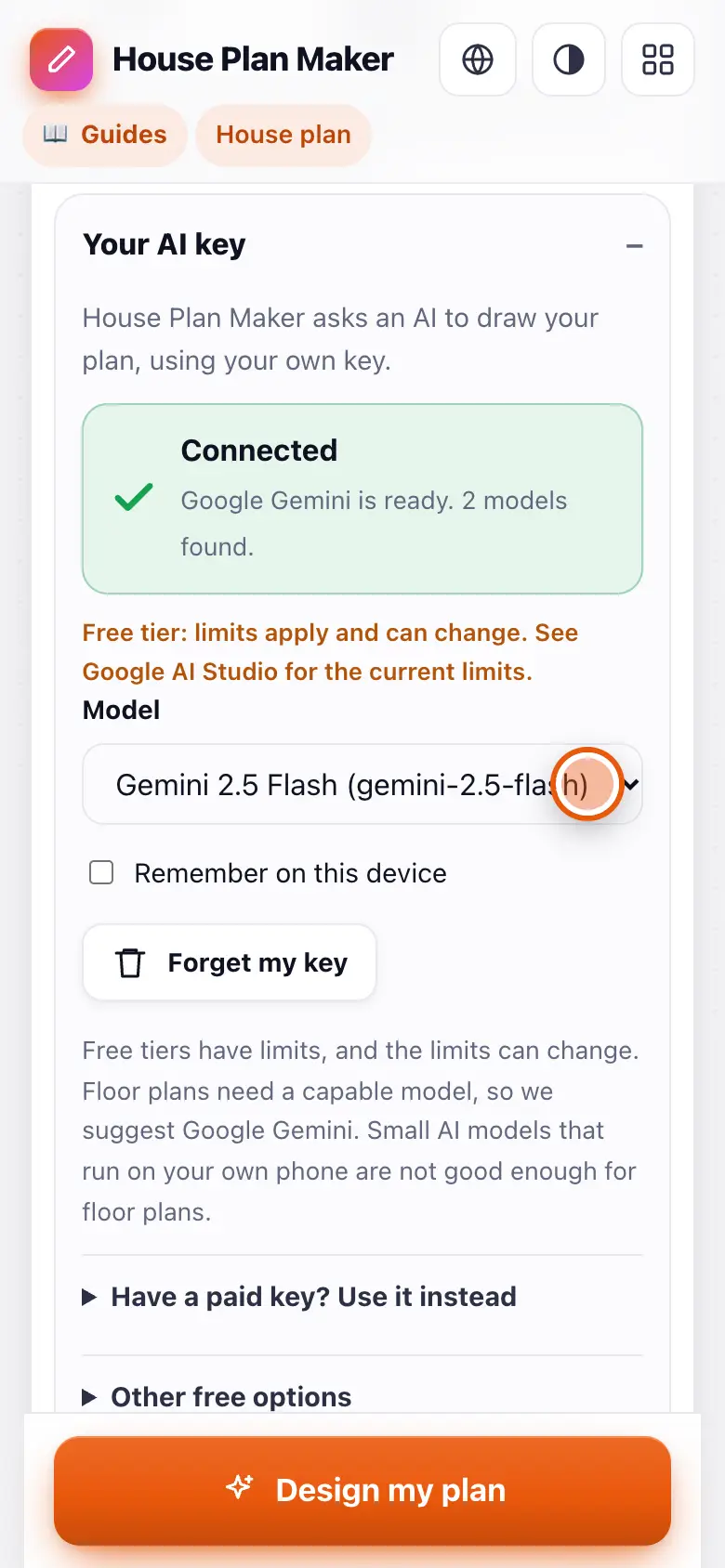
House Plan Maker checks the key. When you see "Connected", pick a model and you are ready to design.
If something goes wrong
It says Google Gemini did not accept the key.
Copy the whole key again with no spaces before or after it, and paste it again.
The Paste key button does nothing.
Some browsers block reading the clipboard. Paste the key in the box under "Or paste the key here".
Last updated: